


Your purchase code, start to finish
Every KodexOrbit product installs with a purchase code. Here's where to find yours — whether you bought on our store or on Codester — and how to activate your installation with it.
What it is
A code like 3f9c2a7e-51b8-4d0e-… that proves your license. The installer asks for it once, at step 3.
One code, one domain
Activating binds the code to your domain. It can't run on a second domain, or on localhost and private servers.
Kept checked
Your installation gets a product key and quietly re-checks it. A refunded or blocked code stops working.
Path A · KodexOrbit Store
Bought on our store? Your code is already waiting.
A purchase code is issued for every license line of a paid order. Nothing to request — just copy it.
- 1
Sign in and open Projects
Sign in with the account you bought with, then go to Account → Projects. Every product you own is listed under My products.
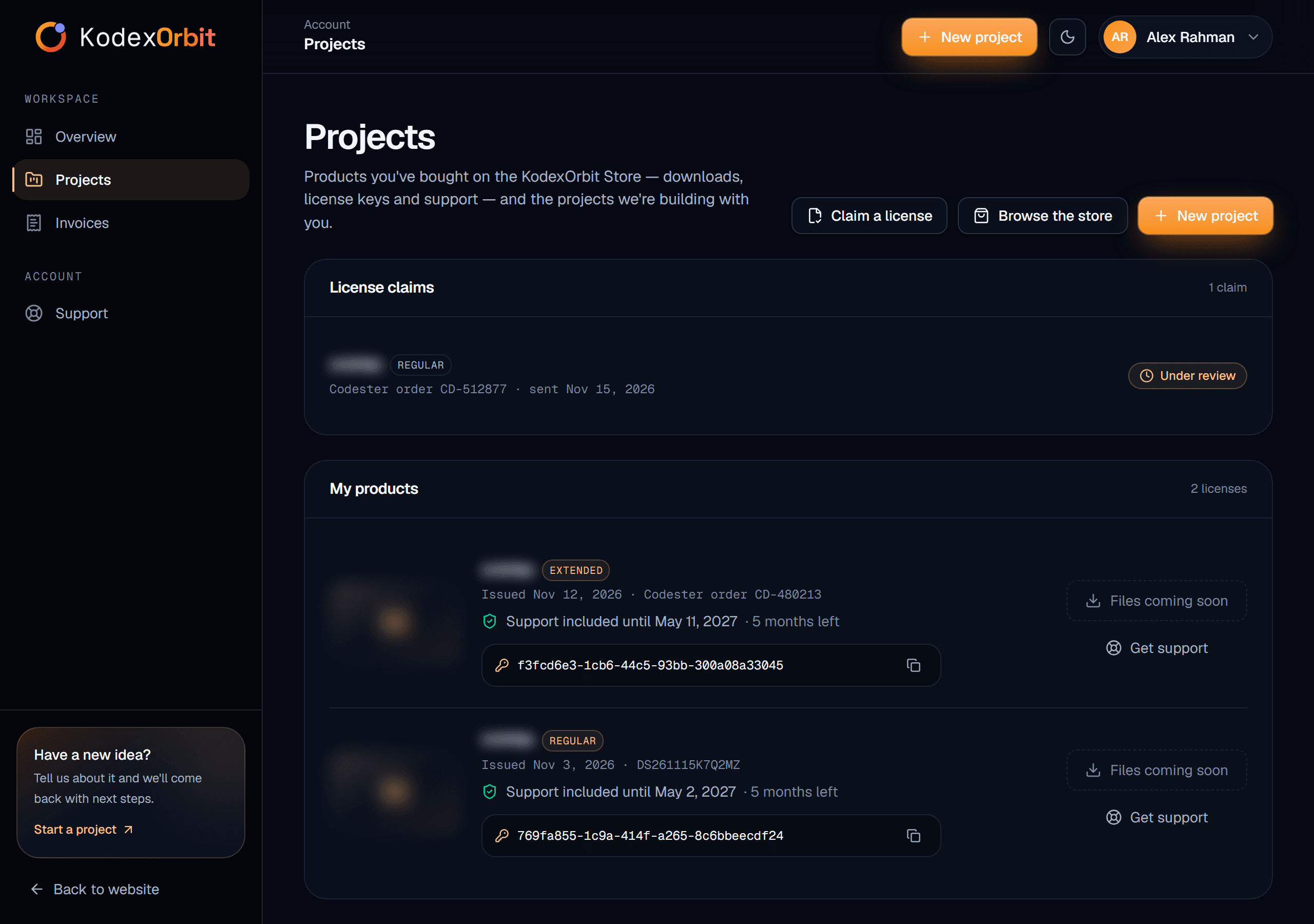
Account → Projects. Product names are blurred in these screenshots. - 2
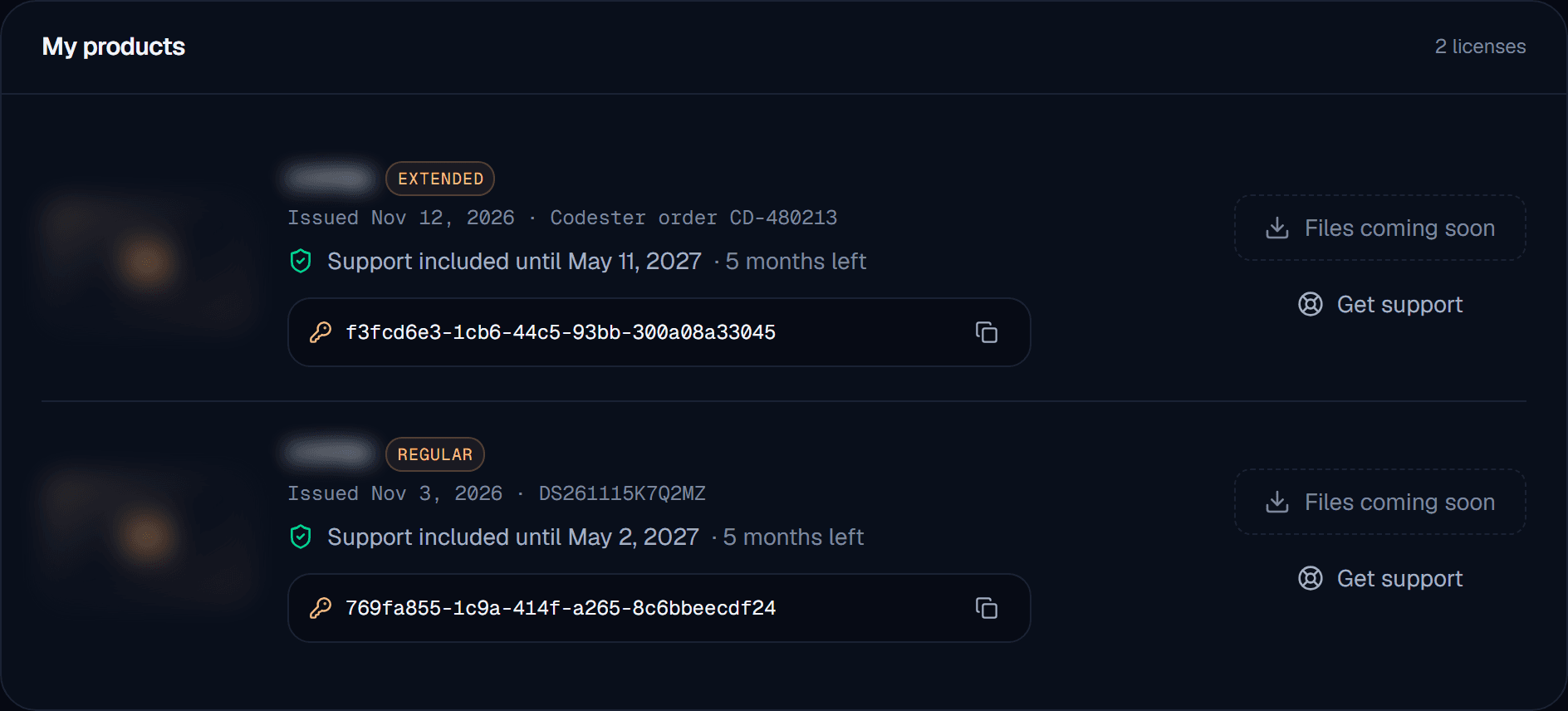
Copy the code next to the product
The code sits next to the key icon, with a copy button. The card also shows the license type, your support period and the downloads.
Bought two licenses? Each one has its own code — use one per site.
- 3
Activate it in the installer
Continue with Activate your installation below.
Path B · Codester
Bought on Codester? Claim it once.
Codester sells our products, but the license lives in your KodexOrbit account. Tell us the order; once we've checked it, your purchase code appears in Projects — just like a store purchase.
- 1
Find your Codester order ID
On Codester, open your purchases (or the receipt email Codester sent you) and note the order ID of the product, and the Codester username you bought with.
A screenshot of the receipt is optional, but it helps us approve your claim faster.
- 2
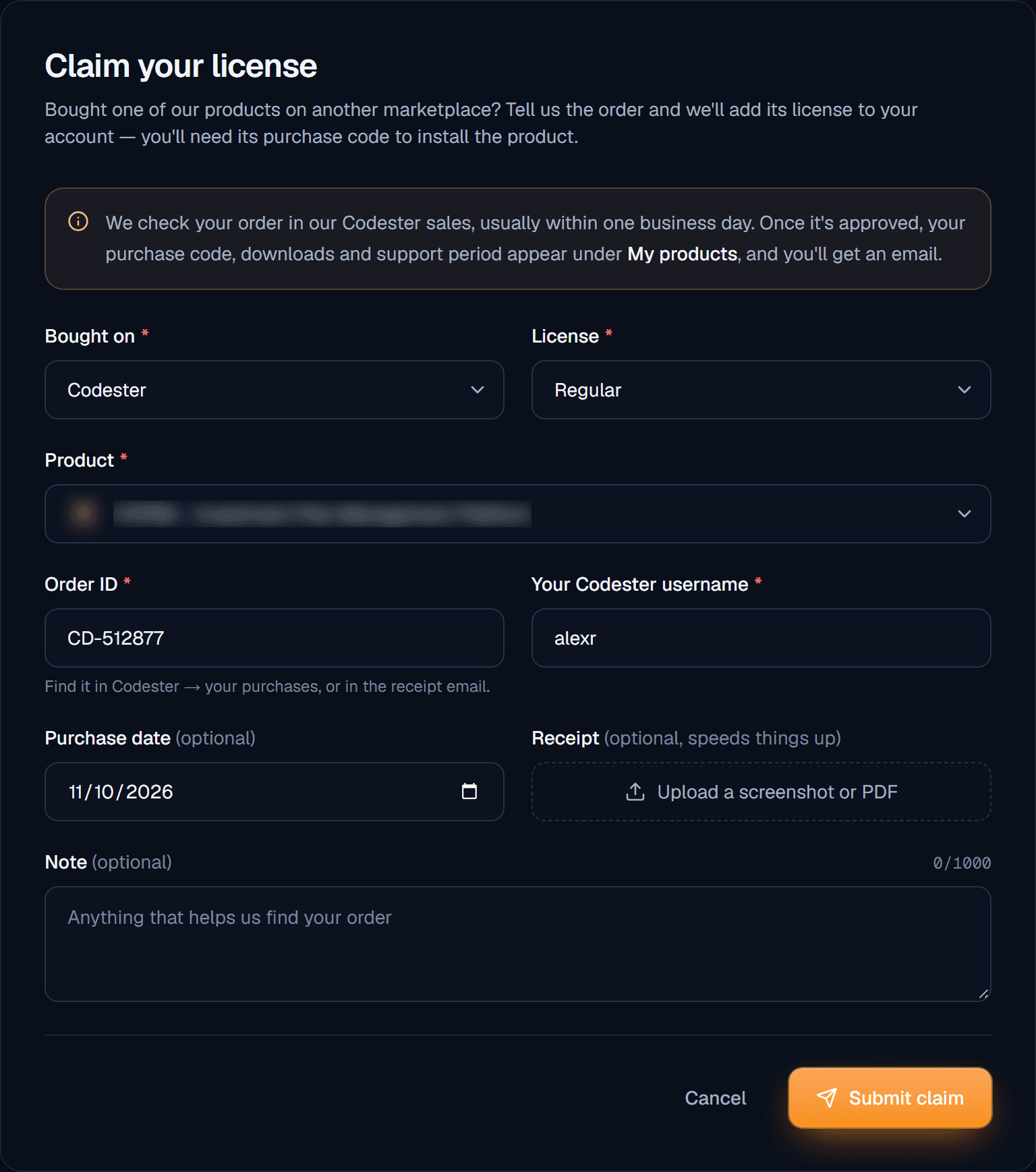
Claim the license in your account
Create a KodexOrbit account (or sign in), then go to Account → Projects → Claim a license.
Choose Codester, the product and the license you bought, and enter the order ID and your Codester username. Add the purchase date and the receipt if you have them, then Submit claim.
- 3
We check your order
Your claim shows under License claims as Under review while we match it against our Codester sales — usually within one business day.
No purchase code is issued until the claim is approved. Each Codester order can be claimed once, by one account.

- 4
Approved — your code is in My products
We email you as soon as it's approved. The product now appears under My products, marked with its Codester order, with its purchase code, downloads and support period.
Not approved? The reason is shown on the claim and in the email — correct the details and claim again.
Activate
Activate your installation
Upload the product to your server and open your domain in the browser — the installer starts on its own.
- 1
Enter the purchase code at step 3
The installer checks your server first, then asks for the purchase code. Paste it and press Activate.
Run it on your real domain — the code is bound to the domain you install on (for example
shop.example.com), and it won't activate onlocalhostor a private IP.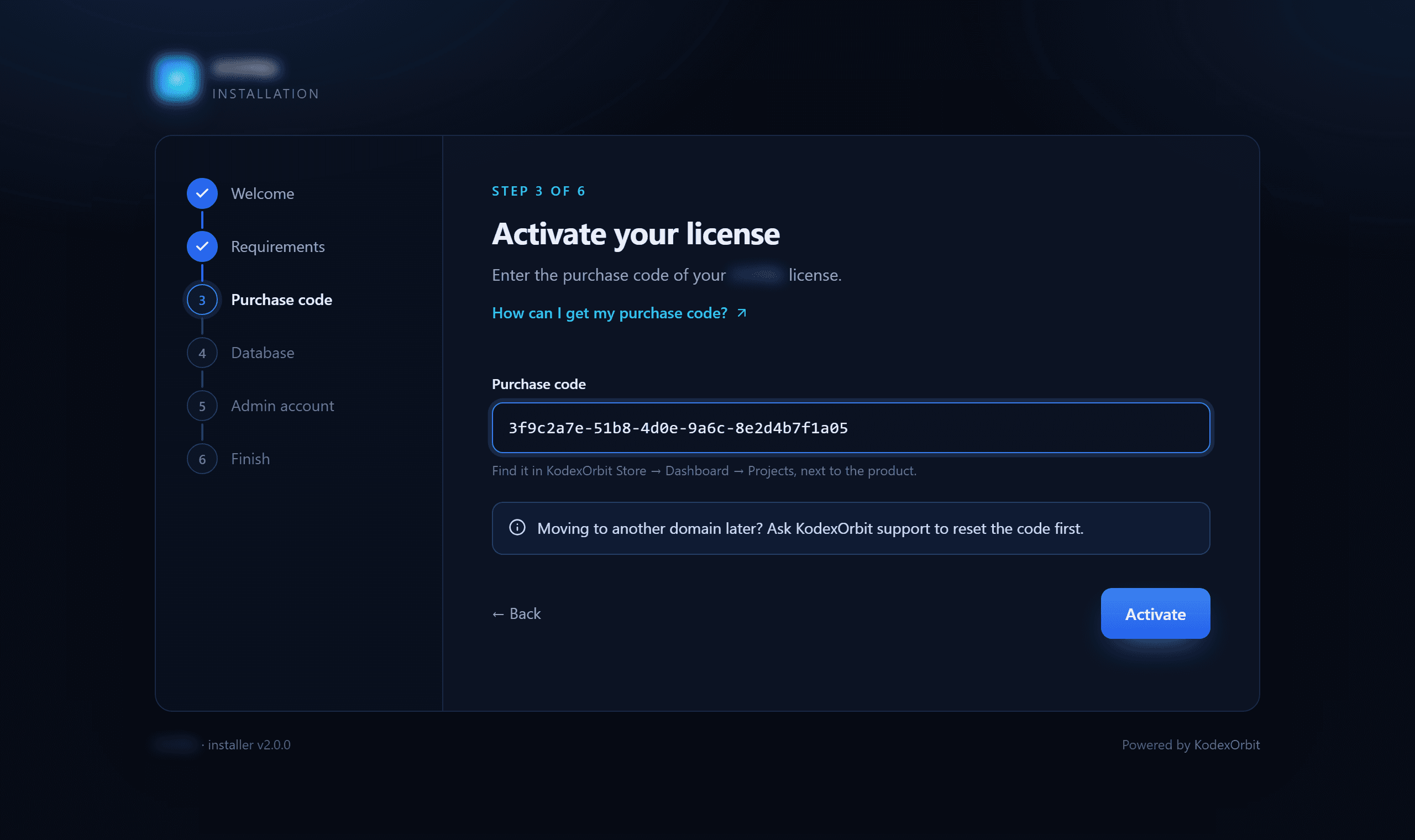
Not sure where your code is? The installer's “How can I get my purchase code?” link opens this guide. - 2
Finish the setup
After activation the installer continues with the database and your admin account. Your installation keeps a product key and re-checks its license now and then — there's nothing more for you to do.
Moving to another domain later? Ask support to reset the code first, then install on the new domain.
Questions
Good to know
Stuck somewhere? Our team can look at your license directly.
I'm moving my site to a new domain. What do I do?
Open a support ticket and ask us to reset the purchase code. We free it from the old domain; then run the installer on the new one with the same code.
Can I install on localhost or a staging server first?
Not with a purchase code — it only activates on a live domain. Install on your real domain, or ask us about a staging setup.
I bought on Codester. Why do I need a KodexOrbit account?
Your license, downloads, updates and support live in your KodexOrbit account. Claiming the Codester order links it to that account and issues your purchase code.
My claim was not approved.
You'll see the reason under Projects → License claims and in the email we send. Fix the details (usually the order ID or the Codester username) and claim again.
The installer says the code is already in use.
It's active on another domain. If that's your old site, ask support to reset it. If you didn't install it anywhere, contact us right away.
Does the purchase code expire?
No. The support period does — you'll see its end date next to the code — but the license itself keeps working.